How to Find Any Homework Screenshot in Seconds Using In-Browser AI OCR
How to Find Any Homework Screenshot in Seconds Using In-Browser AI OCR
Every semester, students take hundreds of screenshots: blackboard slides, practice quiz problems, math derivations, and laboratory diagrams. Within three weeks, these academic captures are buried under thousands of personal photos, memes, receipts, and social media downloads.
When midterm review week arrives, finding “that one calculus problem from week 3” turns into 25 minutes of frustrating scrolling.
Here is how modern in-browser Optical Character Recognition (OCR) changes how you study, and how you can build a searchable image repository without paying for cloud storage or sacrificing your privacy.
The Screenshot Problem in Modern Education
Digital learning has made screenshots the default note-taking medium. When professors flip slides quickly during lectures, students do not have time to transcribe complex equations by hand. Snapping a photo or taking a quick screenshot is natural and fast.
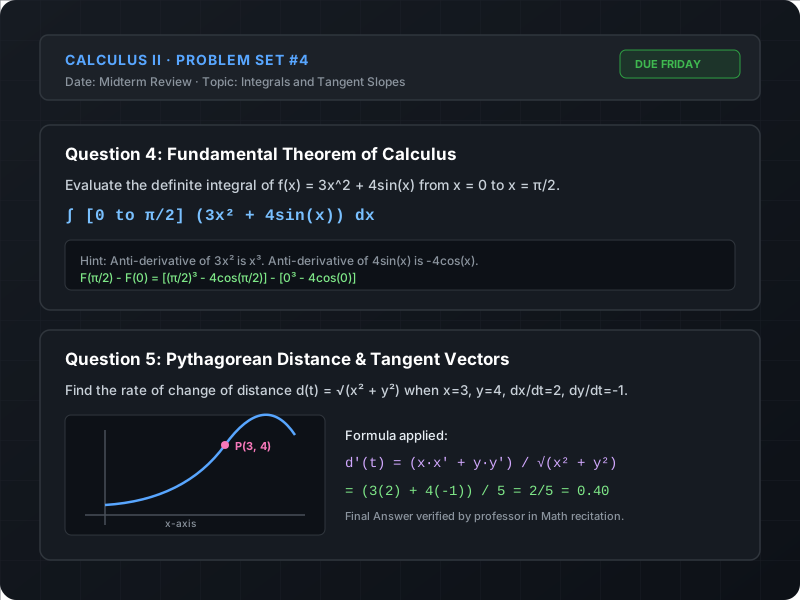
However, standard smartphone galleries treat every image as a flat grid of pixels. They do not know that one photo contains “Question 4: Fundamental Theorem of Calculus” while another contains a photo of your lunch.
Why Standard Gallery Search Fails
- Generic Image Tagging: Stock phone algorithms categorize photos into broad buckets like “document”, “receipt”, or “text”. Searching for a specific mathematical formula or assignment number yields incomplete results.
- Privacy Concerns: Sending every classroom screenshot to third-party cloud servers risks exposing personal study notes and university materials.
- Latency and Paywalls: Heavy cloud OCR services charge subscription fees and take seconds to return results for large image batches.
How In-Browser AI OCR Works (Tesseract.js)
Instead of sending your images across the internet to a remote server, modern web technology allows machine learning models to run directly in your web browser using WebAssembly (WASM) and Web Workers.
In Album Sorter, we use Tesseract.js, an open-source optical character recognition engine compiled for client-side JavaScript.
[Homework Image] ──> [HTML5 Canvas Reader] ──> [WASM OCR Worker] ──> [Hidden Search Index]The Three-Stage Extraction Pipeline
- Binarization and Pre-processing: The image is analyzed on an off-screen HTML5 canvas to enhance text contrast and isolate alphanumeric glyphs from background noise.
- Character & Word Recognition: The Tesseract neural network recognizes printed letters, numbers, and mathematical symbols, assembling them into text tokens.
- Local In-Memory Indexing: The recognized words are indexed in browser memory and IndexedDB.
When you type "Question 4" into the search bar, the search engine compares your query against the pre-indexed tokens in milliseconds—filtering your screenshot library in real time.
3 Practical Tips for Faster Screenshot Search
To make your homework screenshots as easy to find as possible, follow these simple habits:
1. Capture the Problem Number and Heading
Always make sure the slide title or homework problem number (e.g., Question 4, Lecture 14) is visible in the frame. Even if a mathematical graph has few words, the heading gives the OCR engine the anchor keyword it needs.
2. Search for Unique Technical Keywords
Instead of searching for broad words like "homework" or "physics", search for distinct terminology like "trajectory", "ATP Synthase", "anti-derivative", or "AVL tree". These words are unique to individual problem sets.
3. Pair Search with Side-by-Side Study Mode
Once you locate your target problem, don’t switch back and forth between your photo viewer and your text editor. Open Side-by-Side Study Mode to keep the problem statement on the left while drafting your step-by-step solution on the right.
Summary
Screenshots are the fastest way to record academic information, but they are only useful if you can retrieve them when you need to solve homework. By combining client-side AI OCR with instant keyword filtering, Album Sorter ensures that no lecture slide or textbook problem ever gets lost in your camera roll again.
Ready to stop losing homework screenshots?
Try Album Sorter right now in your browser. No account required—search inside your images and study in Side-by-Side mode.